How to use ShiftRounds
Every screen, what it’s for, and what each mark on it means. It’s written for the operator walking the round, and for the supervisor who reads the report afterward.
The screens below are the app on an iPhone and the console in a browser, with sample data for Meridian WTP, a made-up plant. The Android app has the same screens and words, drawn the Android way.
Getting started
Signing in
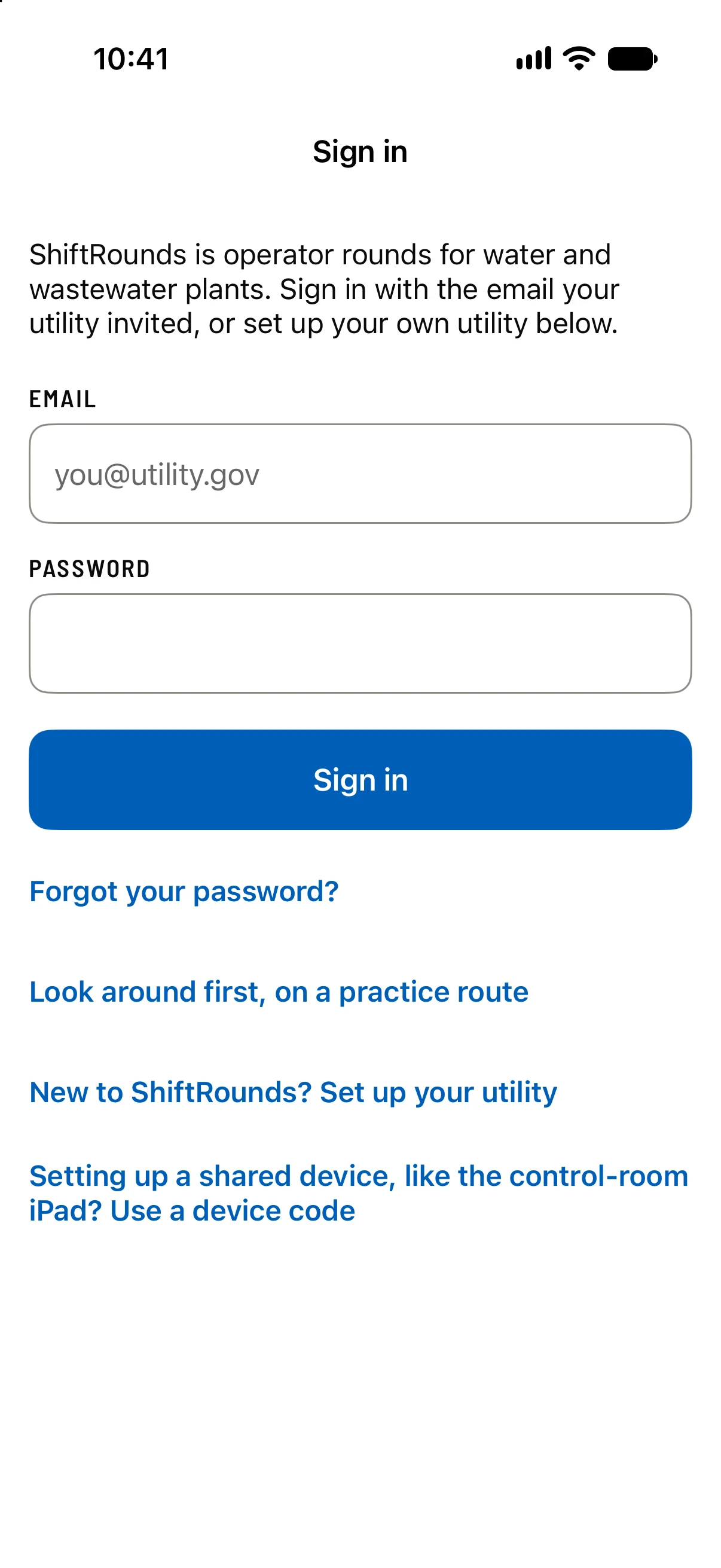
Get the app from the App Store or Google Play, and sign in with the email your utility invited, using the same password as the console.
- Look around first, on a practice route
- Walks a made-up plant without signing in. Nothing you record there leaves the phone.
- New to ShiftRounds? Set up your utility
- Starts a free trial: your utility, your first plant, and a starter route to change.
- Use a device code
- Sets up a shared tablet with a one-time code from the console. See iPads and shared tablets.
Right after you sign in, the app asks whether to lock it with Face ID (or your fingerprint on Android) and, for chief operators and supervisors, whether to get alerts on the phone. You can change both later under More. If your utility uses two-step sign-in, it asks for the code from your authenticator app too.
Rounds
What’s due, and starting a round
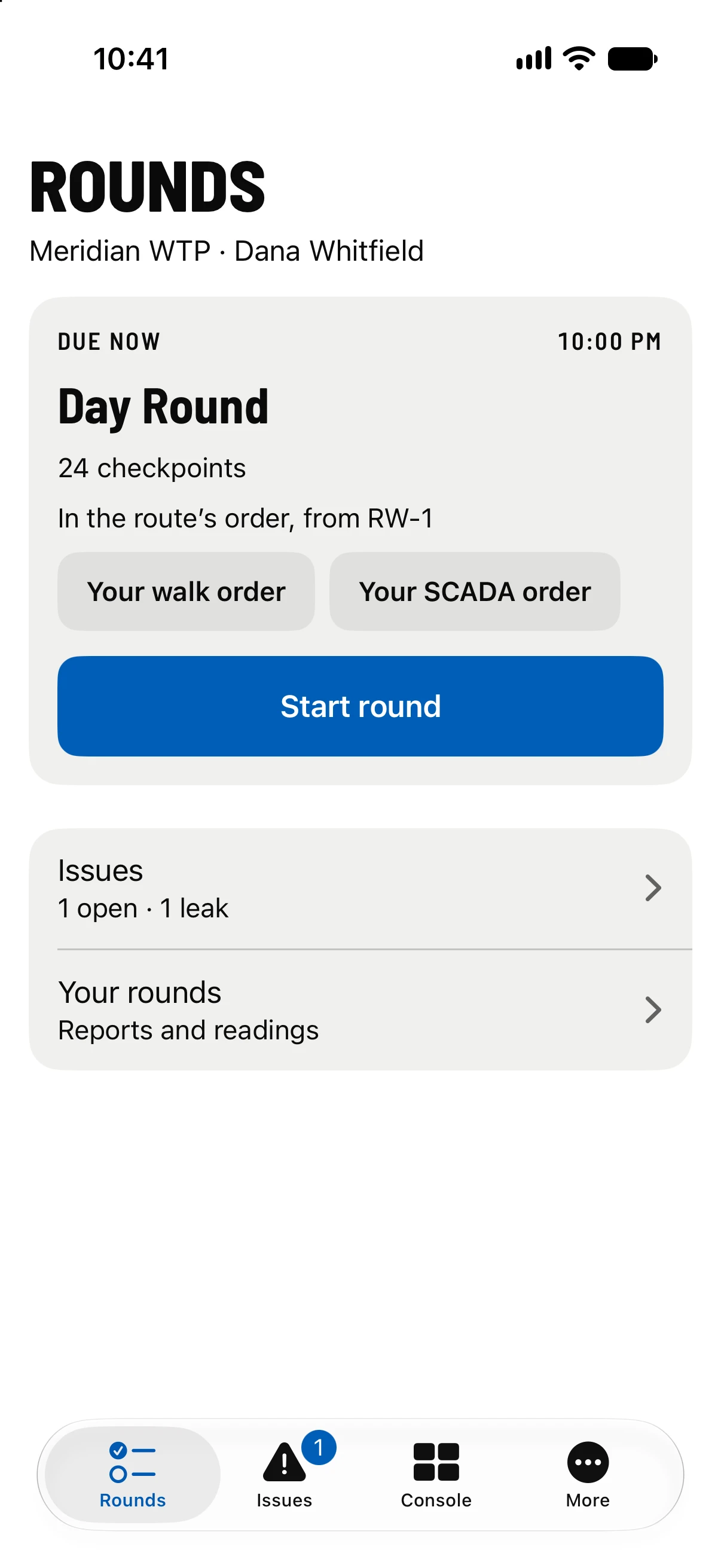
Rounds lists the routes due in the shift you’re in, each with when it’s due. Routes due in other shifts are folded under Other routes, one tap away, so a missed or extra round is never hidden.
- Start round
- Opens the round on its first checkpoint, or on the SCADA list first if the route checks anything against SCADA.
- Your walk order
- Drag the areas, and the checkpoints within each, into the order you walk them. It’s kept on your phone for you alone, and a round copies it when it starts.
- Your SCADA order
- The same for the SCADA list, so it can follow your SCADA screens. It shows on a route with two or more items checked against SCADA.
- Issues
- How many problems are open at your plants, and how many are leaks or critical.
- Your rounds
- Every round you started or took a reading on, by day, each opening its report.
While a round is open, Rounds shows Resume round with how far along it is. One round is open at a time on a phone.
SCADA first
Reading the SCADA screen
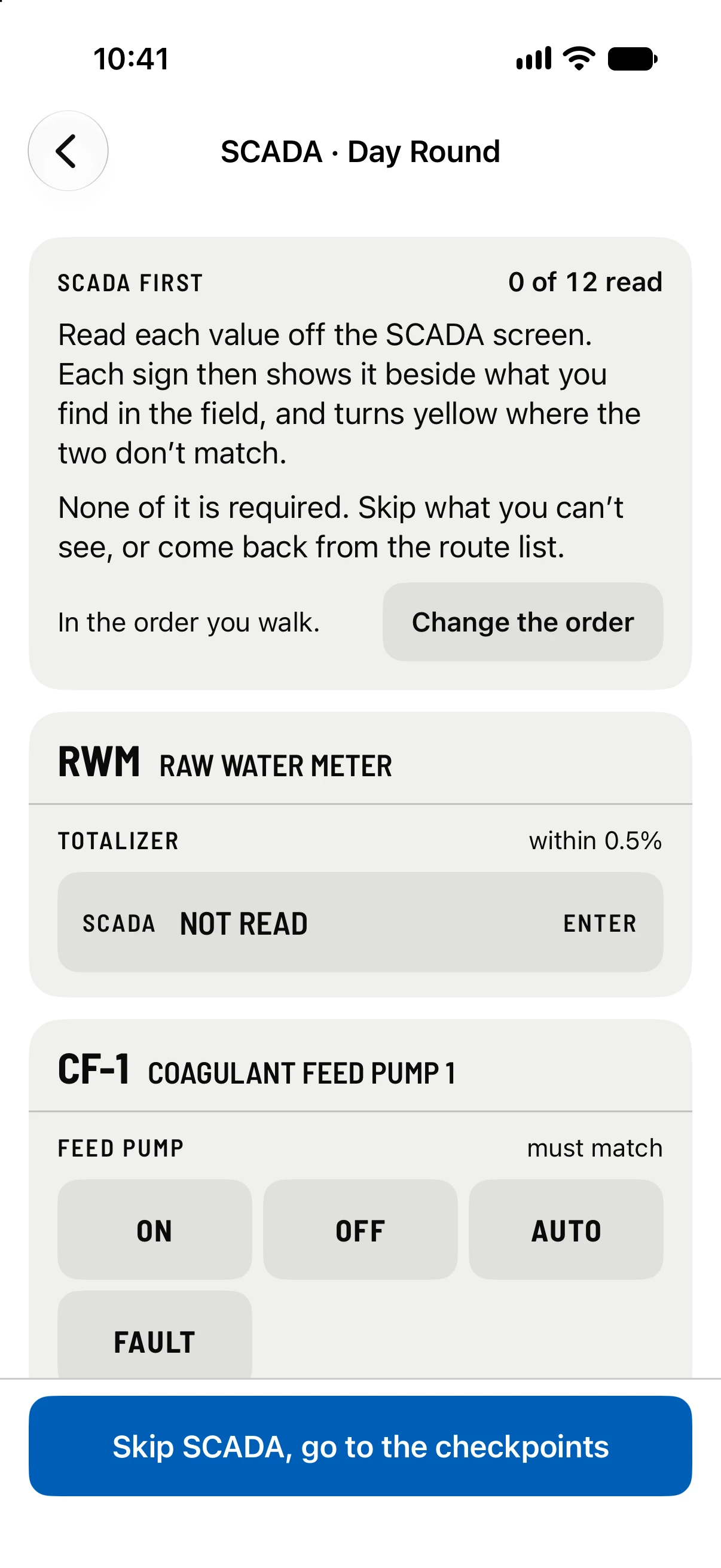
Where a route checks items against SCADA, the round opens on the SCADA list. Read each value off the SCADA screen and enter it here: numbers on the keypad, a pump’s status with one tap.
- within 0.5%
- How far apart SCADA and the field may be before they count as not matching. “must match” means exactly.
- At the checkpoint
- Each sign shows SCADA’s value under the field’s own. Where the two disagree, the sign turns yellow with SCADA MISMATCH.
- Skip SCADA, go to the checkpoints
- None of it is required. Come back to it any time from the route list.
At a checkpoint
Every checkpoint is a sign
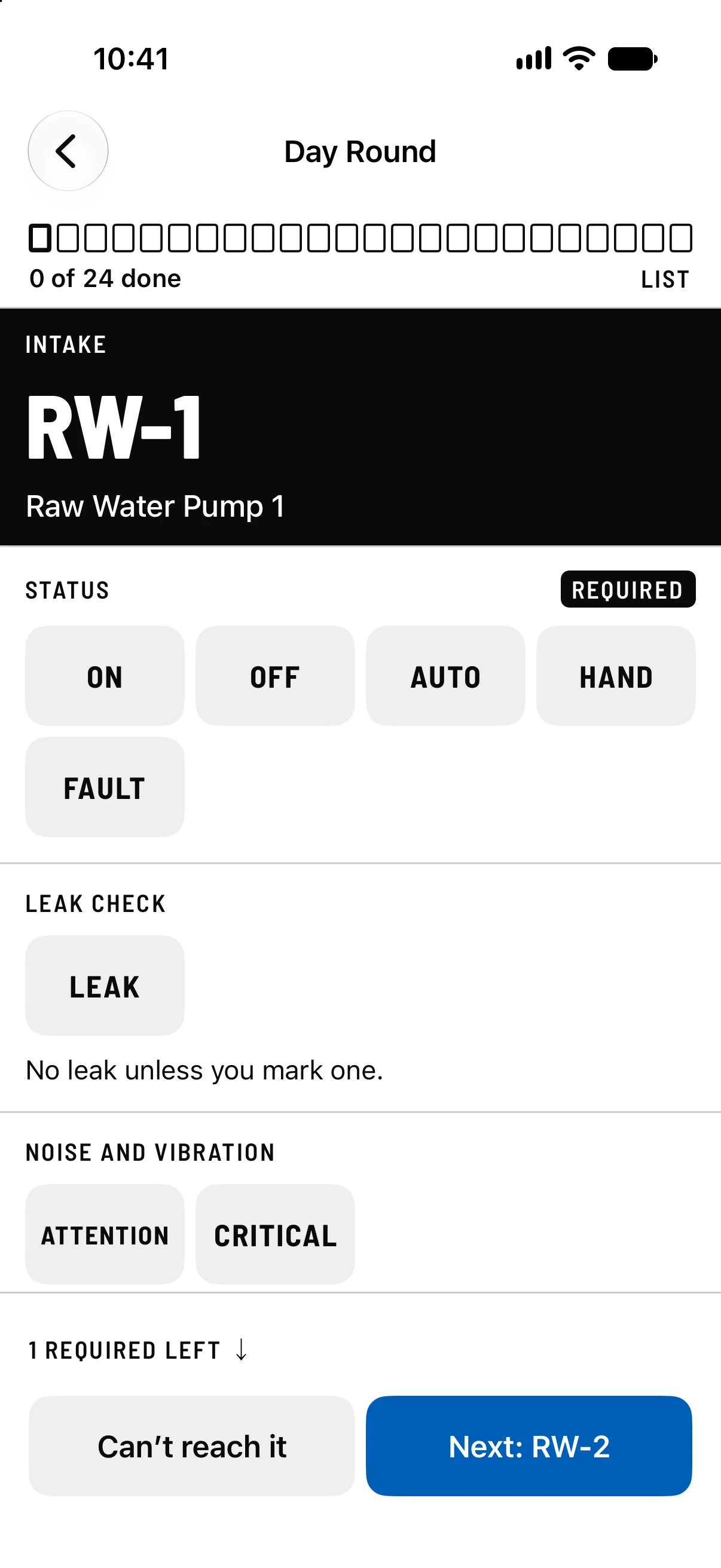
The black plate names the checkpoint, its area and its tag. Below it are the items your plant set up for it, in order, with big buttons for a gloved hand.
- REQUIRED
- The round counts this checkpoint done only once it’s answered.
- LEAK
- Tap only if there is one. Left alone, it records No leak when you move on. Tapped, it asks how bad, and the sign turns orange.
- ATTENTION and CRITICAL
- A rating such as noise and vibration counts as Good unless you mark one.
- The plate’s color
- Yellow for something that needs attention, orange for a leak, red for critical, always with its word. A sign with nothing found stays plain.
- The band at the top
- One box for each checkpoint: filled when done, half filled when it has items left, colored with its finding. LIST opens the route list.
- 1 required left ↓
- Scrolls to the first item still owed.
- Next
- Goes on to the next checkpoint in your walk order. You can move on with items left; review lists them.
A line under the plate, when there is one, is your plant’s note for this checkpoint, such as where the tag is. A problem already open here shows under Open here, at the top.
Taking a reading
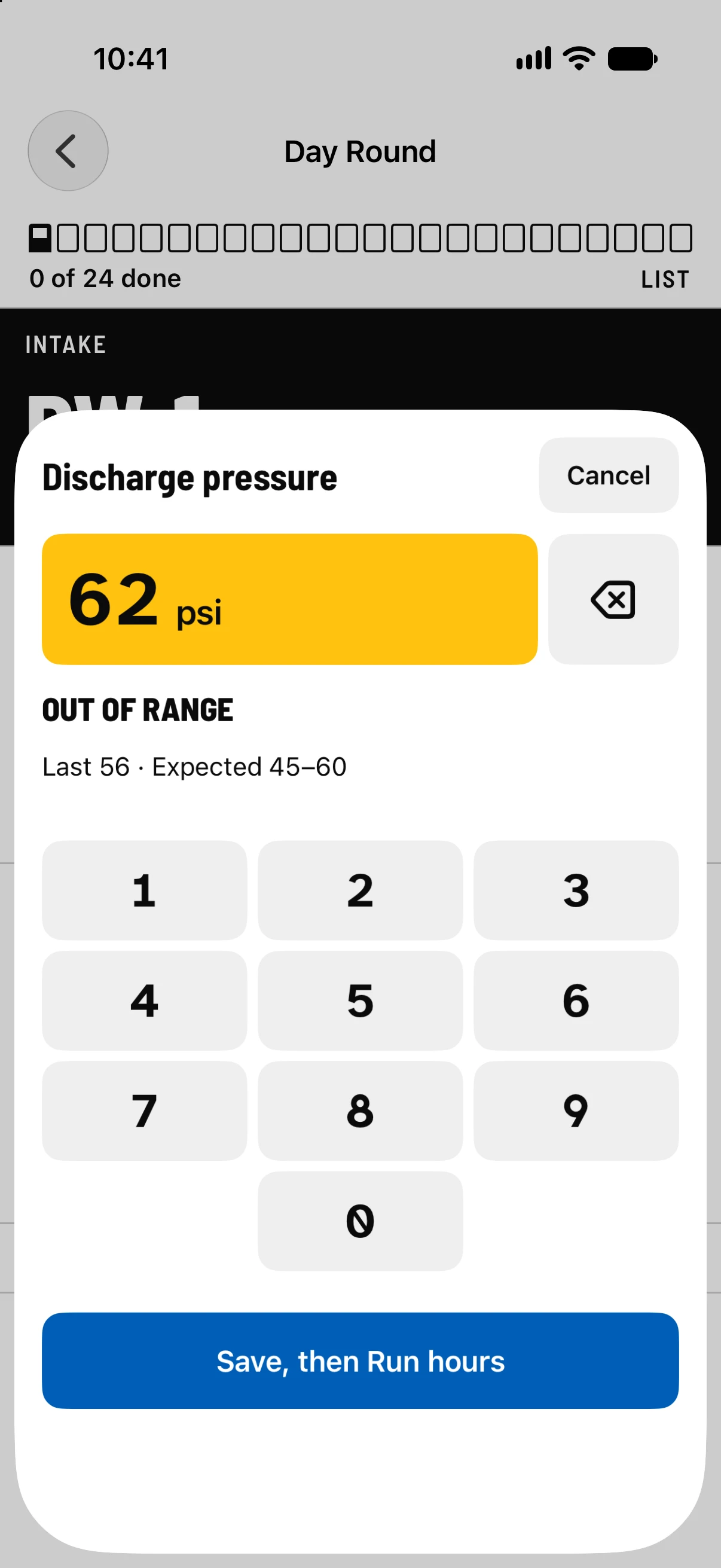
The keypad
Tap a reading’s box to open the keypad. It’s never the phone’s own keyboard.
- As you type
- The number is checked against your limits: yellow for out of range, red for an alarm limit, each with its word. A slip shows before it’s saved.
- Last
- The reading from the last round, and when it was taken.
- Expected
- The range your plant set.
- On a meter
- The change since the last round, and the flow it works out to in MGD. A dial that rolled over is counted right.
- Save, then Run hours
- Saves this reading and goes on to the next empty one at the checkpoint. It stops where something needs a tap instead, and the screen moves to it.
- Cancel
- Closes the keypad without saving.
A number the gauge can’t show is refused before it’s saved. To change a reading, open it and type the right one: the first entry stays in the record, and the report uses the latest.
When you can’t reach it
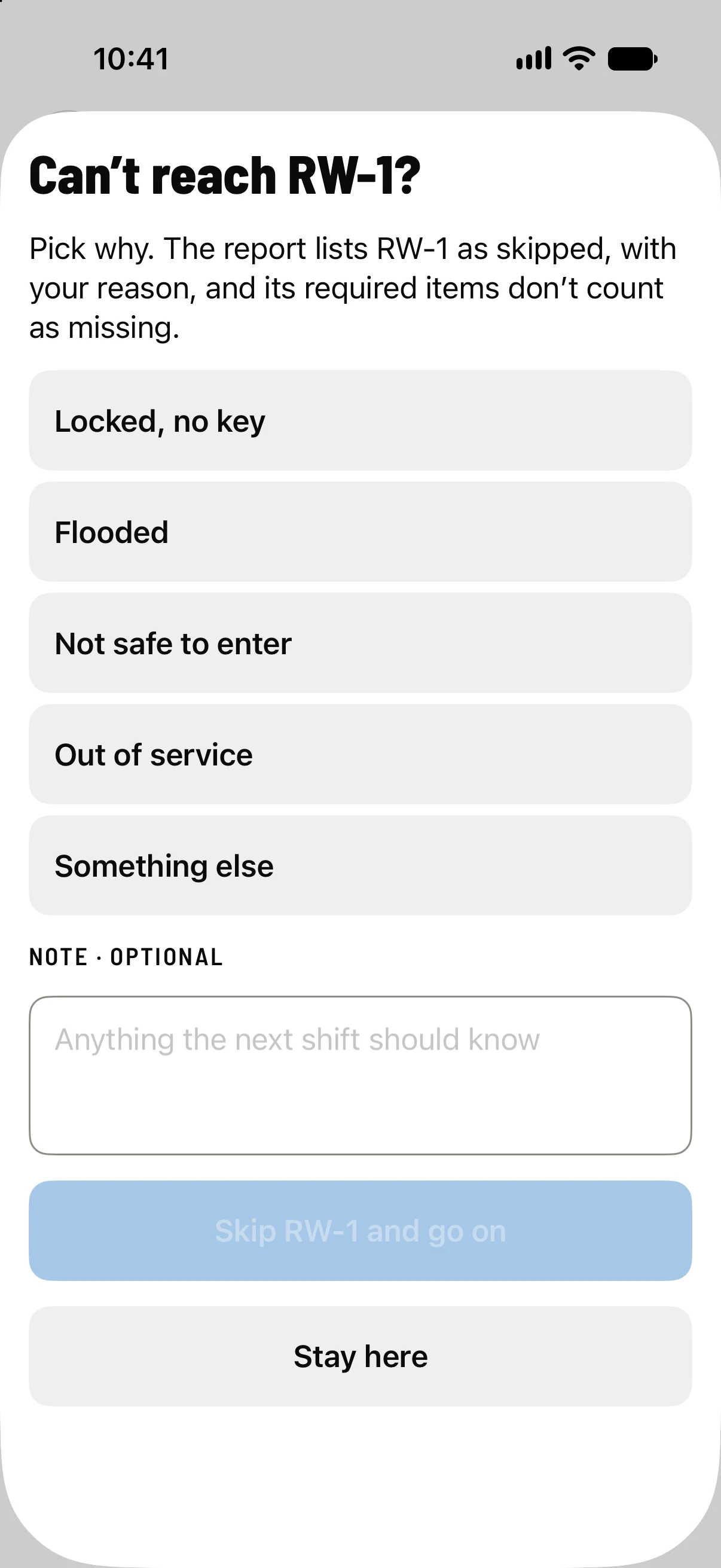
Skipping a checkpoint
Press Can’t reach it and pick why. The report lists the checkpoint as skipped with your reason, so nobody takes it for one that was checked, and its required items don’t count as missing.
- A note
- Optional, except for Something else. It goes on the report.
- Afterward
- The sign turns yellow with SKIPPED. Change the reason and Take it back are on it until the round is submitted.
A problem already open
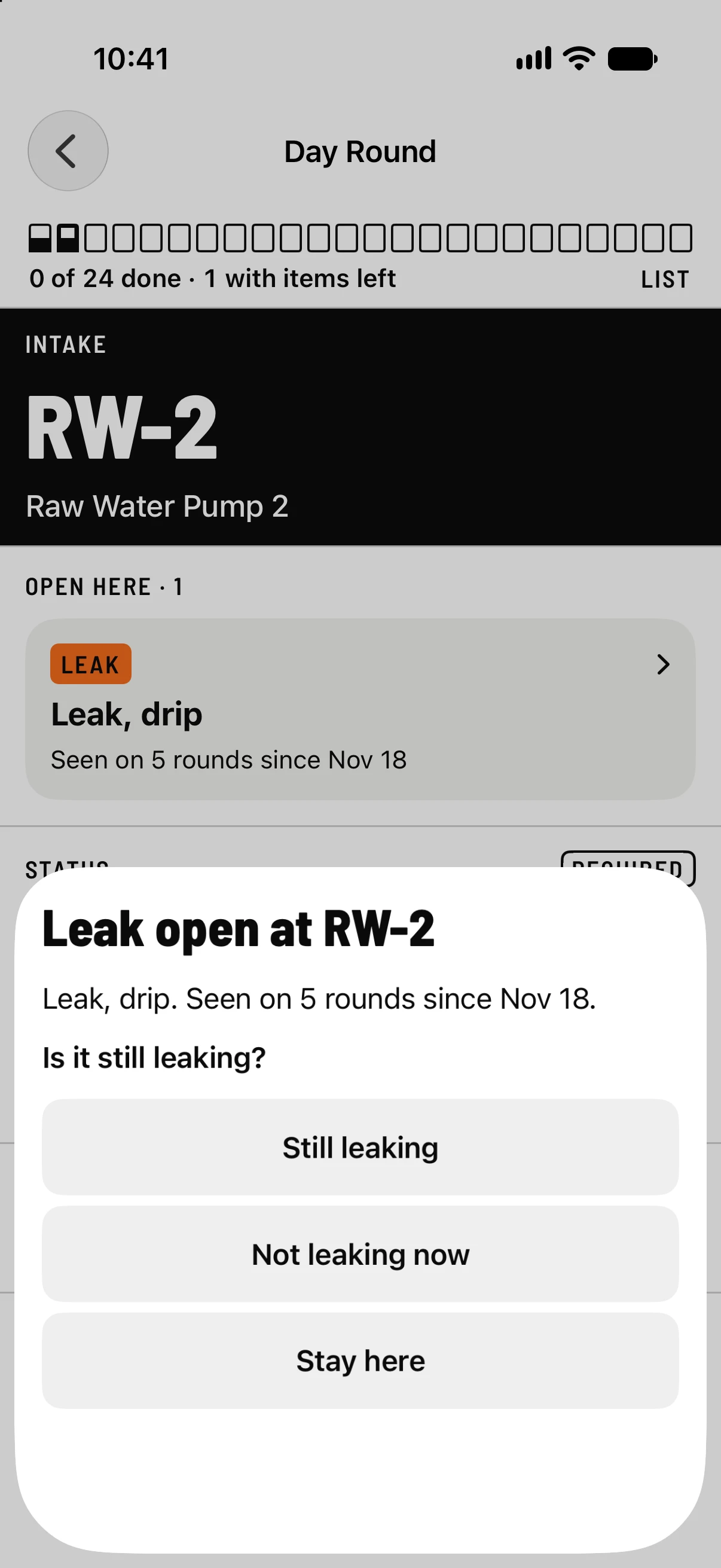
Is it still leaking?
At a checkpoint with a leak already open, Next asks whether it’s still leaking before it records anything. That way a leak someone is already following never goes down as No leak by mistake.
- Still leaking
- Marks the leak, and stays for its size and photo. The round is added to the open issue.
- Not leaking now
- Records No leak on purpose and goes on.
- Stay here
- Goes back to the sign.
A condition problem asks the same way: is it still a problem?
The route list
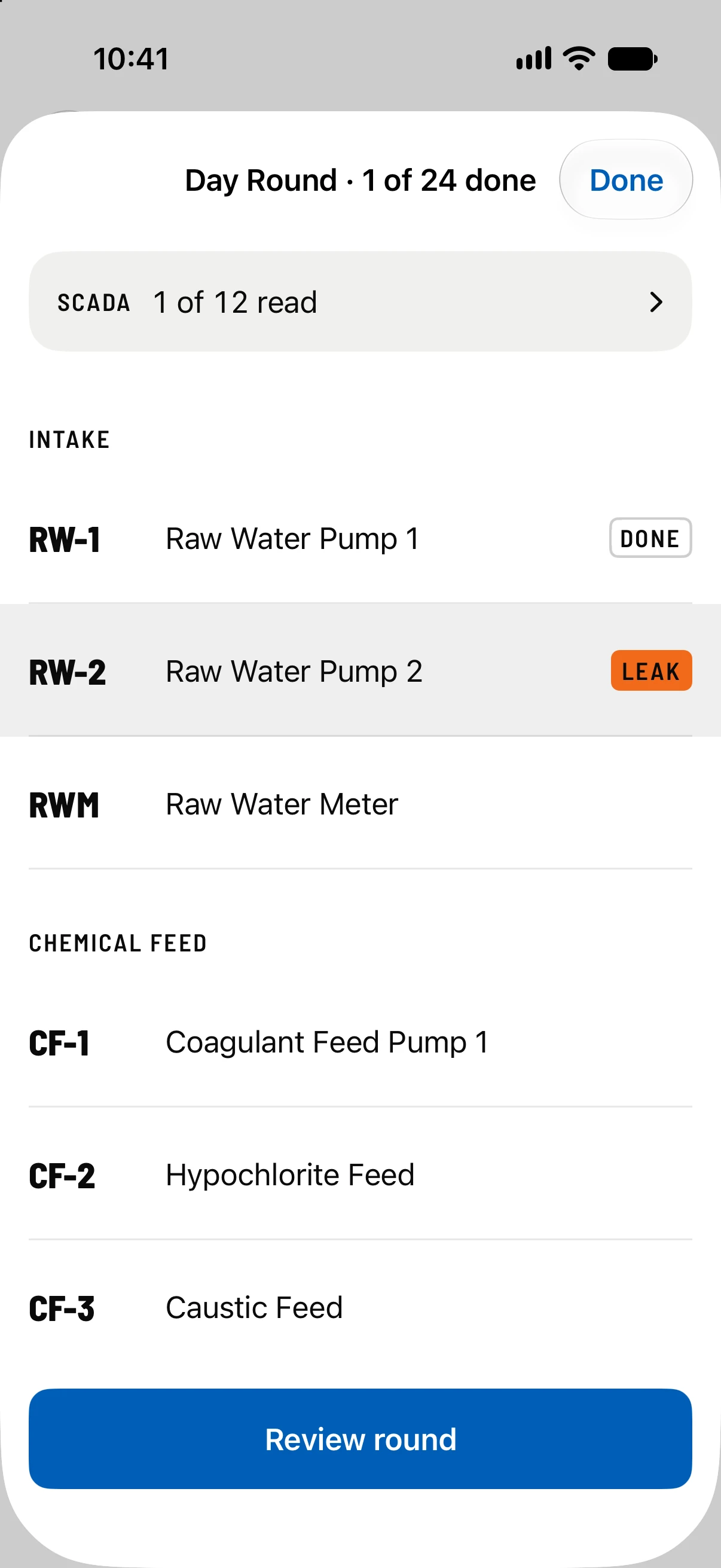
The whole route in view
Tap the band at the top of a sign to see the whole route, area by area, in your walk order.
- Each checkpoint
- Marked done, with items left, skipped, or with what was found. Tap one to go to it.
- SCADA
- How many SCADA values are read, and the list to read more.
- Review round
- At the foot, whenever you’re ready to finish.
Review and submit
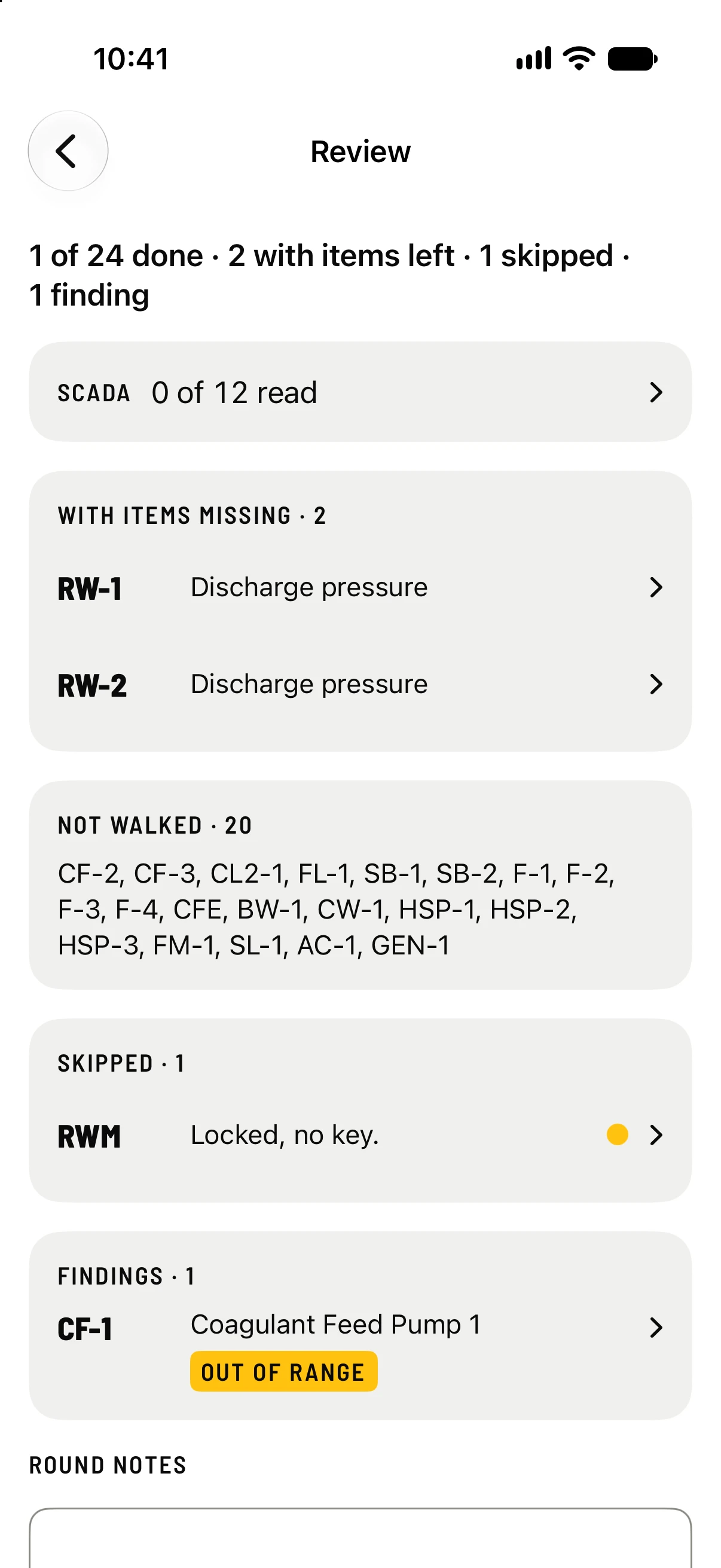
Before you submit
Review gathers everything the round still needs before it goes, each line opening its checkpoint.
- With items missing
- Required items left empty, by checkpoint.
- Not walked
- Checkpoints nobody opened.
- Skipped
- With each reason.
- Findings
- Everything out of range, a leak, a fault, or a SCADA mismatch.
- Round notes
- Anything the next shift should know. It goes on the report.
- Why it’s unfinished
- Called to an alarm, call-out, end of shift, or other. Asked only when something is left, and then the button says Submit as incomplete.
The round is signed with your initials from your account. There’s nothing to type.
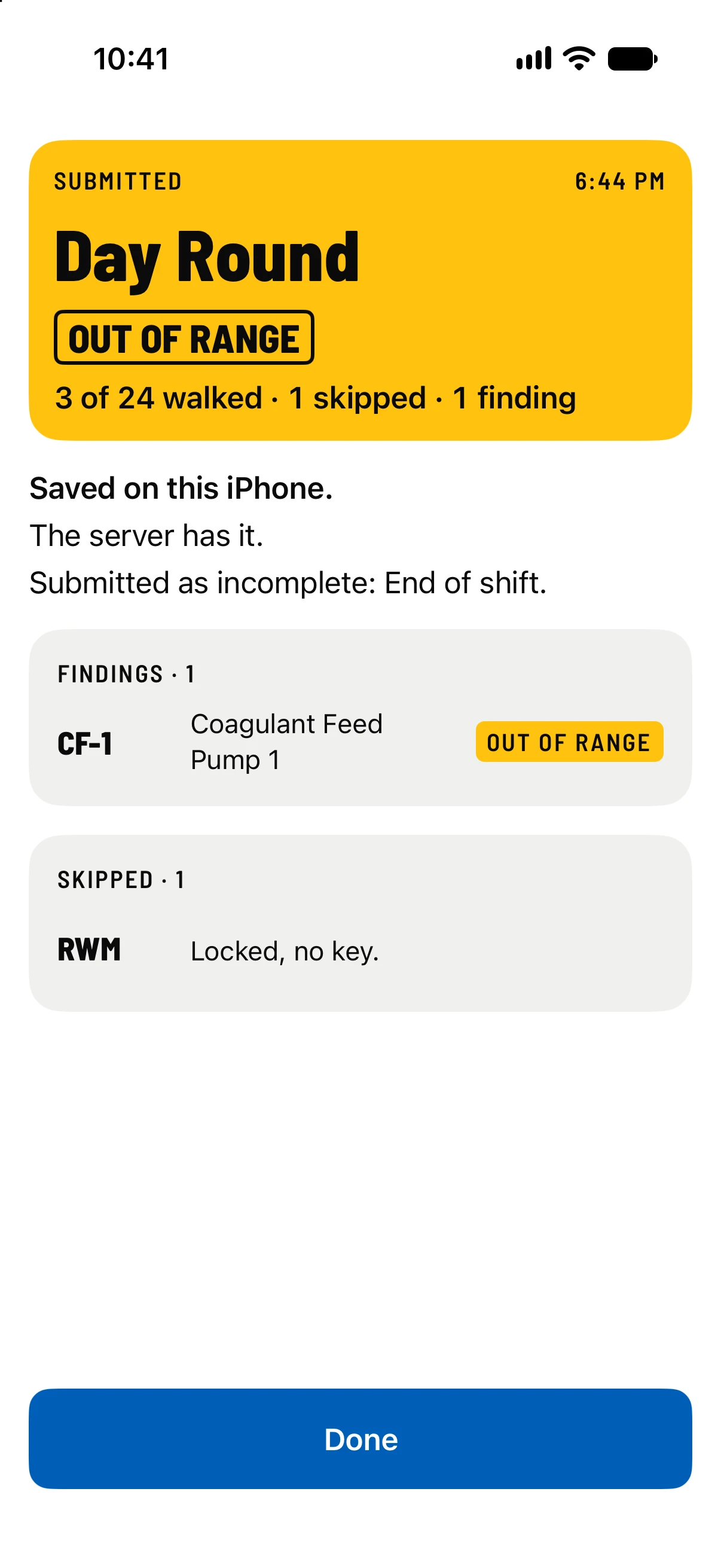
Submitted
The sign takes the color of the worst thing found. Under it, the app says the round is saved on the phone, then where it stands with the server.
- Sending it now
- On its way.
- The server has it
- The report is on its way to the people your plant chose.
- No signal here
- It sends on its own when there’s signal. Nothing is lost, and the report says when each reading was taken.
- Done
- Back to Rounds. A submitted round can’t be changed.
With no signal
A whole round can be walked with the phone in airplane mode. Every tap is saved on the phone as it’s made and sent once there’s a connection, minutes or hours later, with the time it was taken. Rounds says how many things are waiting, and More says what they are.
Anything waiting stays on the phone for the person who recorded it. If someone else signs in, it waits until that person signs in here again, and never goes under anyone else’s name. Don’t delete the app while anything is waiting.
Issues
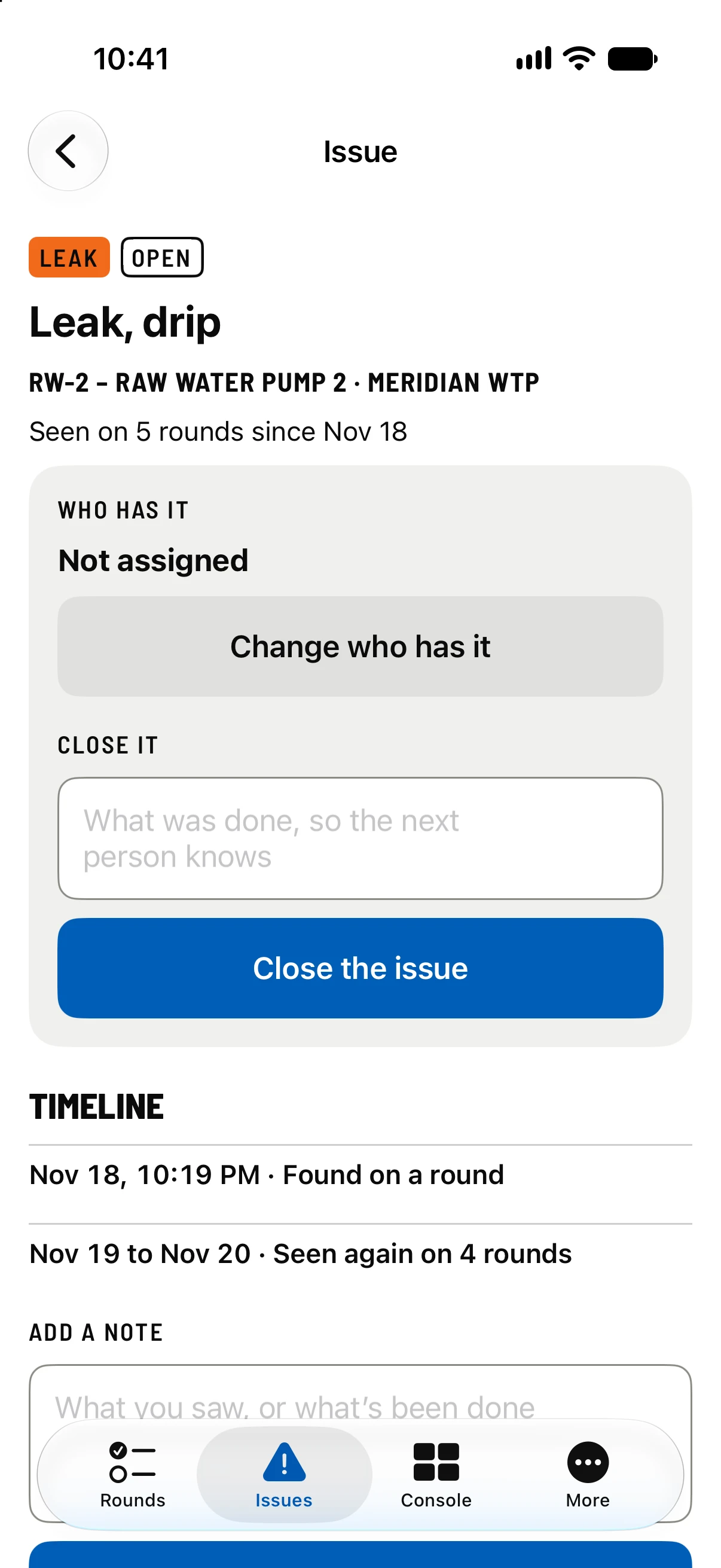
Following a problem
A leak or a critical finding on a round opens an issue at its checkpoint. Seen again on a later round, it goes on the same issue instead of a new one. The Issues tab lists what’s open, critical and leaks first, with NEW on anything you haven’t looked at.
- Report an issue
- On the Issues tab, or at the foot of any sign. Pick what it is (a leak, an equipment fault, a condition, or something else), whether it needs someone now, a line saying what’s wrong, and up to eight photos.
- Already open here
- Shown when the same kind of problem is open at that checkpoint. Your report goes on it, unless you say it’s a different problem.
- Who has it
- An owner, chief operator or supervisor assigns it, and closes it with what was done.
- Timeline
- Everything that happened to it, in order. Anyone can add a note.
ShiftRounds isn’t a work-order system. An issue says what was found and when it was fixed; your maintenance system does the rest.
Alerts and quiet hours
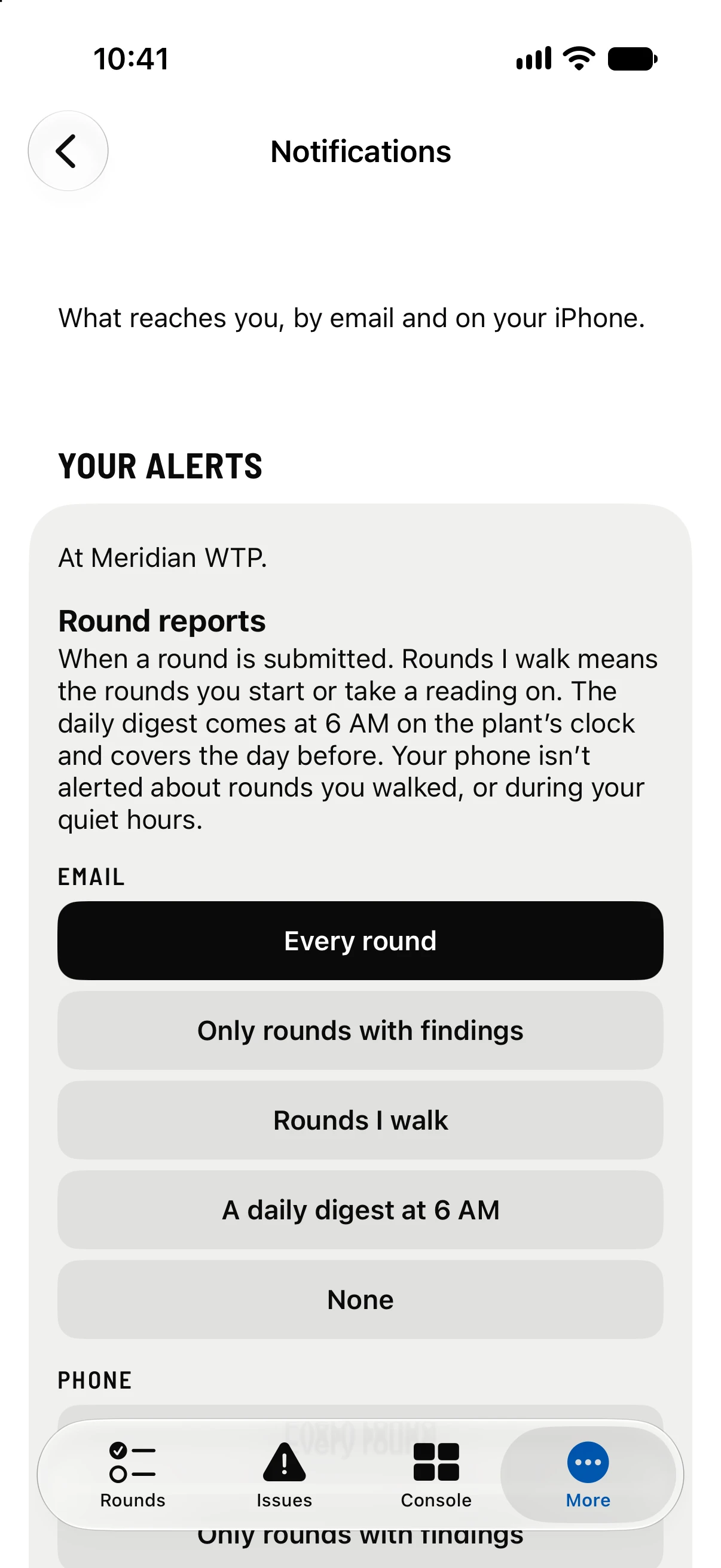
Choosing what reaches you
Each person chooses their own, under More, then Notifications, or in the console. Each choice saves as you make it.
- Round reports
- By email: every round, only rounds with findings, the rounds you walk, a daily digest at 6 AM, or none. On the phone: every round, only rounds with findings, or none.
- Leaks and critical findings
- As soon as they reach the server, by email and on the phone. The chief operator and supervisors always get them by email.
- Overdue rounds
- When a scheduled round isn’t submitted by its due time.
- Quiet hours
- Hours when the phone alerts you choose (leaks, critical findings or overdue rounds) wait until your quiet hours end. Emails are never held.
- Send me a test
- Sends a test email and a test alert, and says what arrived.
The phone needs alerts turned on under More, and allowed in the phone’s own Settings. If they’re blocked there, More says so, with a button that opens the right page.
Without opening the app
- The round you’re walking stays on the iPhone’s Lock Screen and in the Dynamic Island: what’s been found, how far along it is, what’s next, and a Resume round button. On Android it’s a notification with the same, and a Round tile in Quick Settings.
- Widgets for supervisors show open issues and rounds missed in the last 24 hours, on the Home Screen, and on the iPhone’s Lock Screen too.
- Siri and Shortcuts: “Start the Day Round in ShiftRounds” or “Report an issue in ShiftRounds”, from Siri, Spotlight or the Action button. Control Center has Resume round and Report an issue. Spotlight also finds your checkpoints by tag or name. Android has the same as launcher shortcuts: press and hold the app’s icon.
- The lock: with Face ID or the fingerprint lock on, the app asks again after 10 minutes away. The phone’s passcode works too, for an operator wearing a respirator.
iPads and shared tablets
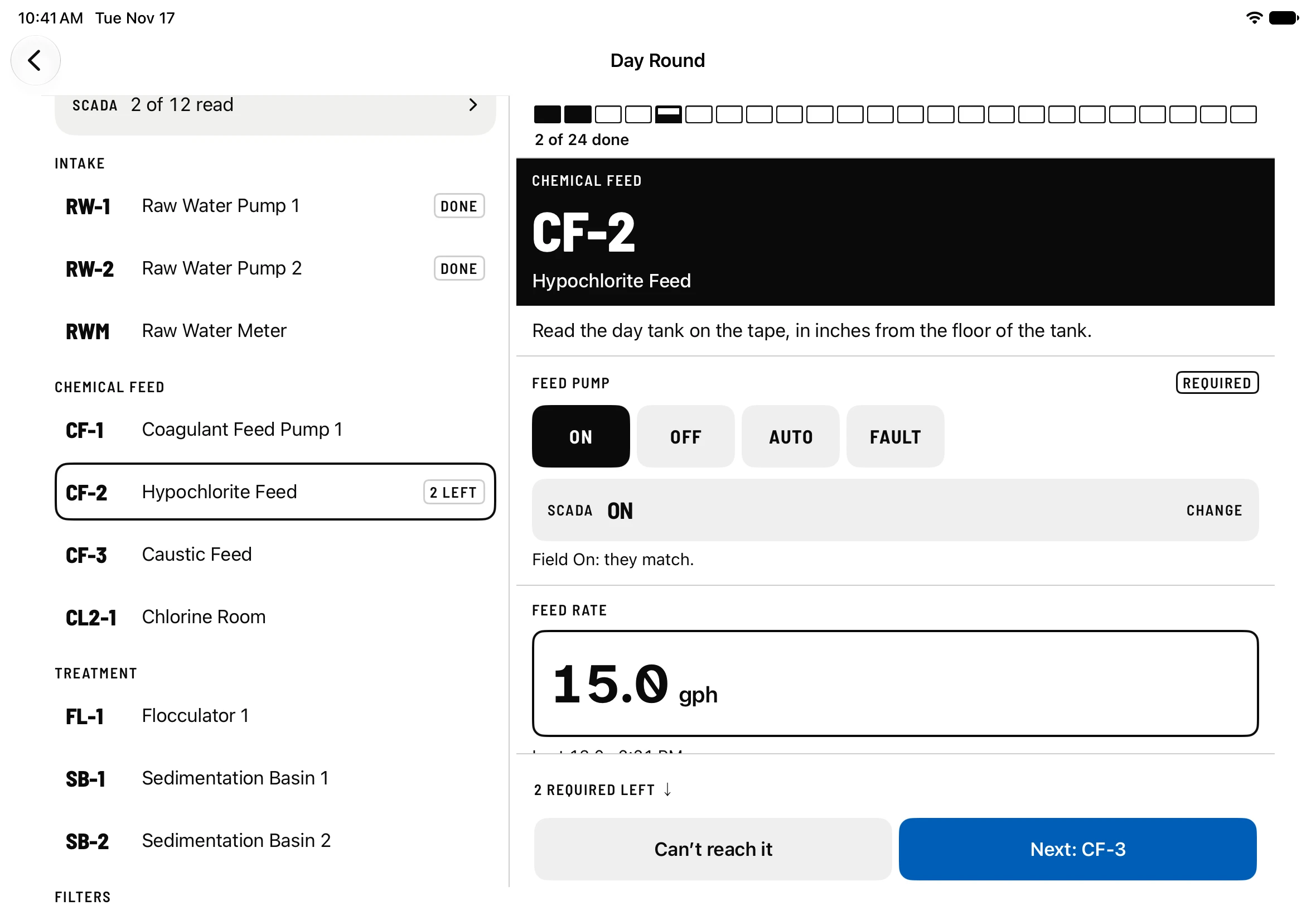
Held sideways, an iPad keeps the whole route beside the checkpoint you’re on; tap a row to go to it. iPads have no NFC reader, so a round walked on one records that as its reason for each tag.
A shared tablet, such as the one in the control room, is set up once with a one-time code from the console’s Devices. After that it opens on its roster: tap your name and type your four-digit PIN, which works with no signal. Every reading is recorded as yours. An owner or chief operator can turn PINs off for a device, so a tap on a name is enough.
Switch person hands it to the next operator. It goes back to the roster on its own after a round is submitted, or after five minutes idle with no round open.
In the console
Owners, chief operators and supervisors use the console at app.shiftrounds.com in any browser, and its pages are also on the phone under the Console tab.
Today
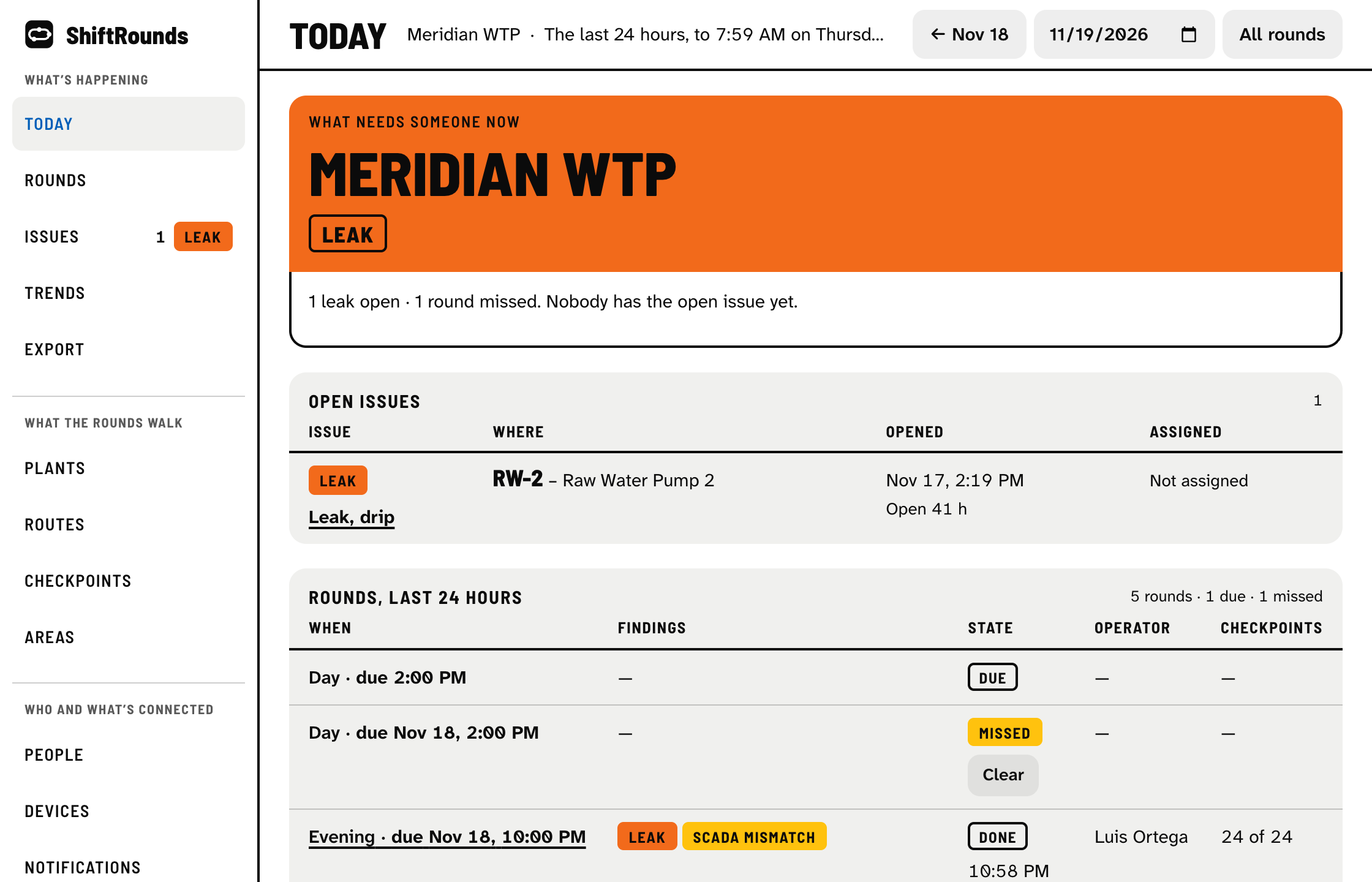
- The plant’s sign
- Black when all is well, or the color of the worst thing open or found, with the reasons in a line.
- The board
- Every round in the last 24 hours by shift: due, overdue, in progress, missed, incomplete or done, with who walked it and what was found. A row opens its report.
- Clear
- Takes a missed round off the board, with Undo.
- Go to a day
- Opens any past day’s whole board.
A round’s report
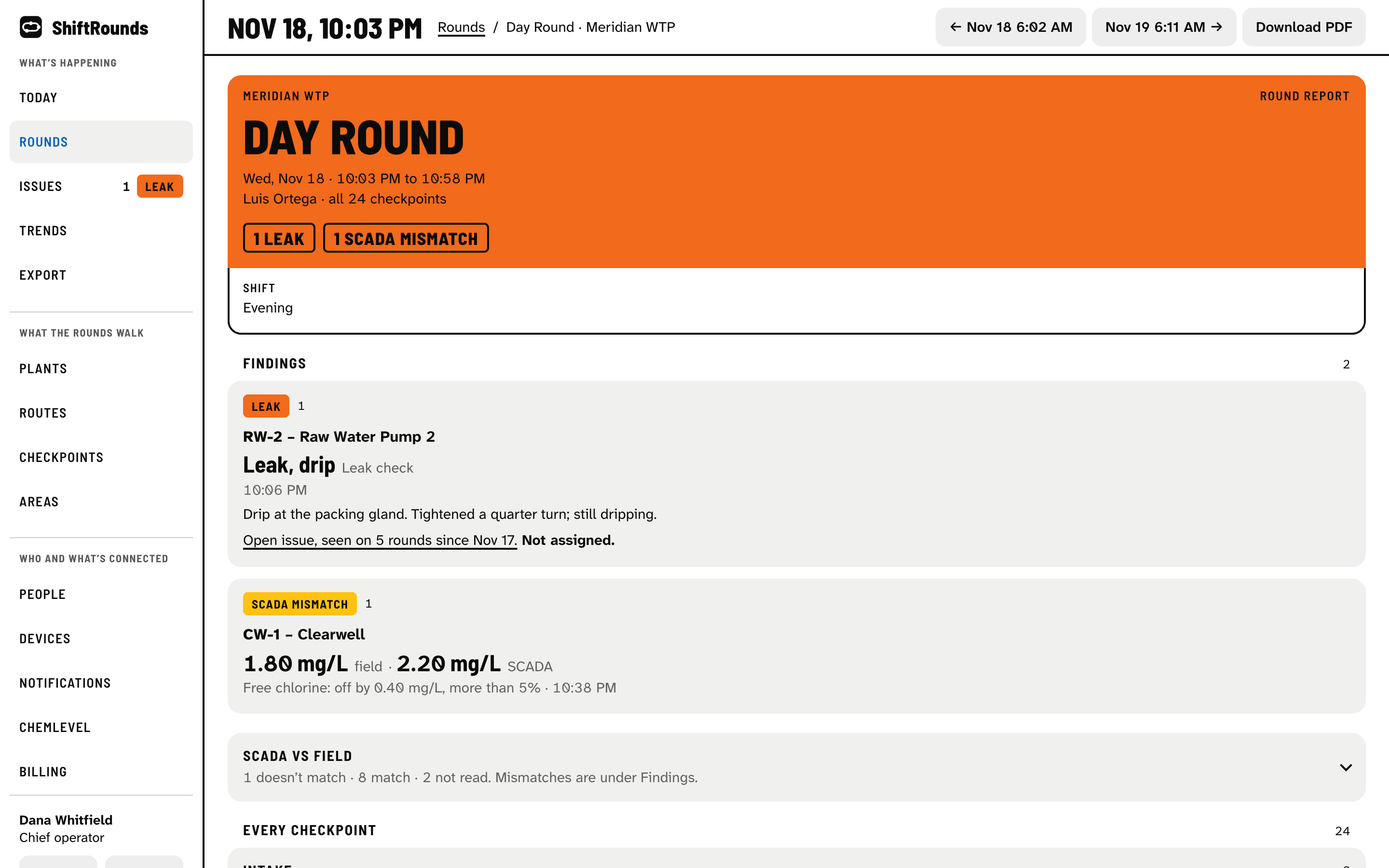
The same report is emailed when the round reaches the server, with a PDF attached. It starts with what was found, grouped by kind, then anything incomplete or skipped, then every checkpoint by area.
- Download PDF
- The report as a PDF, to print or file.
- Void this round
- For a round that shouldn’t count, such as a test. It stays in the record, marked voided, and leaves Today, trends, the daily digest and exports. Restore it any time. A round with nothing found can be deleted instead.
- Rounds
- Every round, newest first, by route, between two days, or only those with findings.
- Trends
- Each reading over 14 days to a year, against its expected range and alarm limits.
- Export
- Readings, or daily flow for the monthly operating report, as a spreadsheet. See meter readings to MGD.
Setting up routes
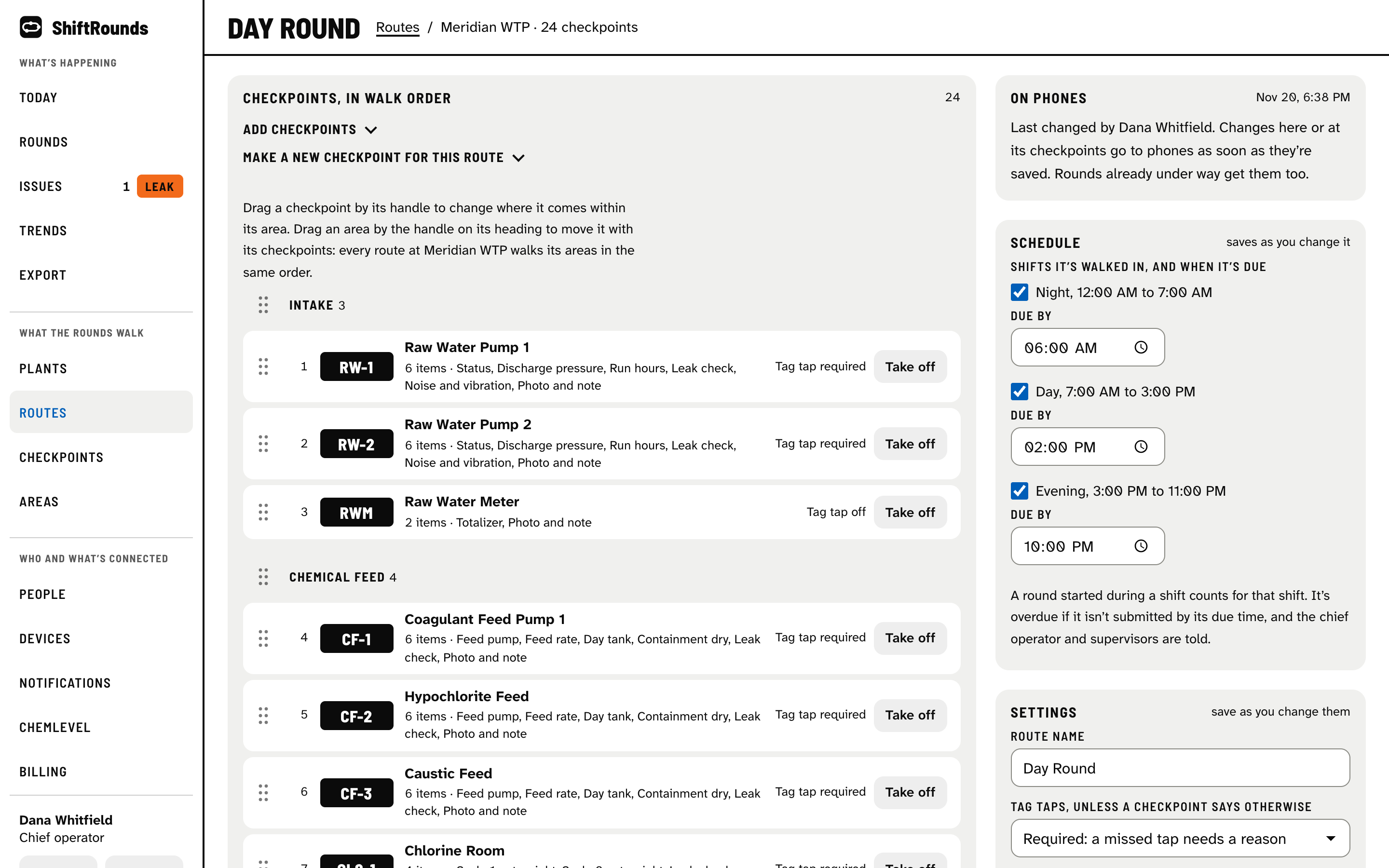
Owners, chief operators and supervisors set up what the rounds walk. Changes save as you make them and reach phones as soon as they’re saved, rounds already under way included. There’s nothing to publish.
- Plants
- Each plant’s name and its shifts, such as Night, Day and Evening, and whether times are 12- or 24-hour.
- Routes
- The checkpoints in walk order, dragged by their handles; the shifts it’s walked in and when each is due; and its settings. Copy a route to start a night round from a day one.
- Checkpoints
- Each starts from a template (a pump, a filter, an analyzer, a lift station and more; see the checklists) and takes your own items, limits and SCADA checks.
- Areas
- The parts of the plant, in the order every route walks them, and their tags.
- People
- Invite people by email, add operators who don’t sign in, set PINs and roles, and require two-step sign-in.
- Devices
- Shared tablets: a code to set one up, PINs on or off, and removing one.
Something not covered here? Support has answers to common problems, and you can write to us at info@shiftrounds.com.